
FloXL is usually installed automatically alongside the FloCalc desktop software. However, in some cases the FloXL component may not be installed. This guide explains how to verify that FloXL is installed and correctly configured.
During the FloCalc installation, ensure that the FloXL component is selected.
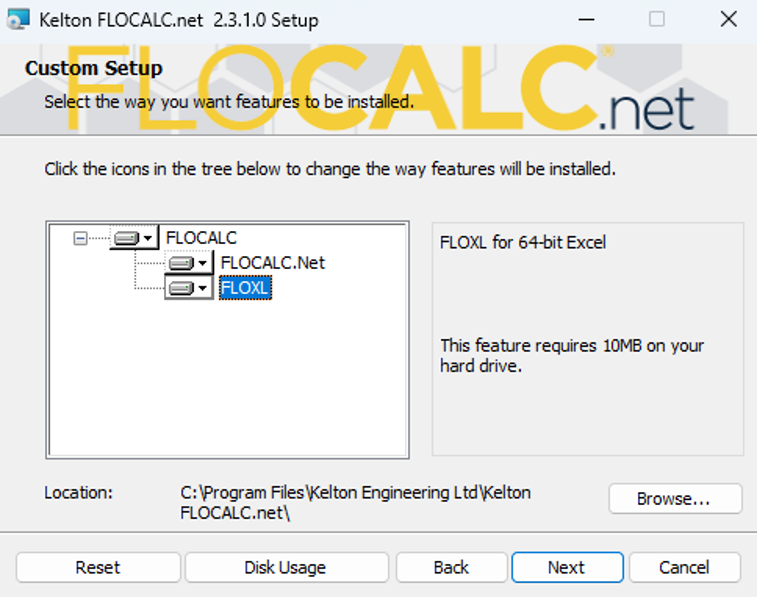
Note: A valid FLOCALC licence is required to utilise FloXL.
Step 1: Confirm the FloXL Add-in is installed.
Verify that FloCalc is installed and opens correctly.
To confirm that the FloXL add-in has been installed, check that the appropriate .xll file exits in the FloCalc installation directory.
Version | Installation Folder | Expected File |
32-bit | C:\Program Files (x86)\Kelton Engineering Ltd\Kelton FLOCALC.net | FloXL2020-AddIn32-packed.xll |
64-bit | C:\Program Files\Kelton Engineering Ltd\Kelton FLOCALC.net | FloXL2020-AddIn64-packed.xll |
Expected Outcome: The appropriate file exists in the installation folder and when double-clicking this, the add-in is accessible within Excel.
Step 2: Verify the Software Versions
For the FloXL add-in to install and load correctly, the bit version of FloCalc must match the bit version of Microsoft Excel. Both applications must be either 32-bit or 64-bit.
Follow the steps below to verify the version of each application.
FloCalc
- Launch FloCalc.
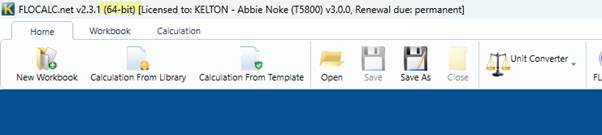
- The bit version is displayed in the top banner, as highlighted below.
Microsoft Excel
- Open Excel.
- Navigate to File > Account > About Excel.
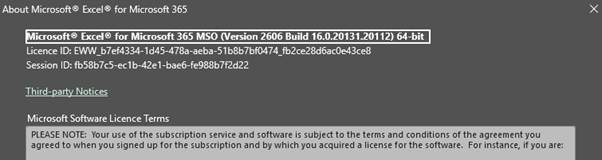
- The bit version is displayed at the top of the About Microsoft Excel window, as shown below.
If the bit versions do not match, install the version of FloCalc that matches your Microsoft Excel installation. Please contact support@kelton.co.uk if you require a new installer.
Once the correct version has been installed, confirm that the appropriate .xll file is present in the installation folder and can be opened (see Step 1).
- If the .xll file is present, but the add-in is still unavailable, continue to Step 3.
- If the .xll file is still not present, please contact support@kelton.co.uk, confirming how FloCalc was installed (for example, via a Software Centre or by direct installation).
Step 3: Check Trust Centre Settings
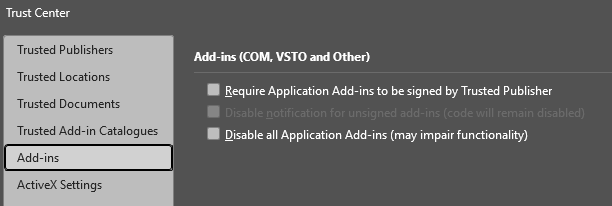
Go to Excel > File > Options > Trust Centre > Trust Centre Settings.
Ensure that the "Disable all Application Add-ins" is not enabled.
Need further assistance?
If you continue to experience issues enabling FloXL after following the steps above, please don't hesitate to contact the Kelton Support team at support@kelton.co.uk